The IP Camera and IP CCTV Blog

The IP network camera online store and blog from Network Webcams

HOWTO: Set Up External Access to Your Camera Using a Netgear DG834 Router

Setting up remote access to your IP Camera from anywhere on the Internet is one of the many benefits of IP Cameras, but sometimes this doesn’t go smoothly when you have to start fiddling with routing, firewalls and port numbers.

Luckily, we are on hand to provide information about how this is done on the majority of common routers we use today. Let’s start by looking at the Netgear DG834.

(This should also work on most models of Netgear router as their firmware is very similar across the range)

We have assumed the following:

  • Camera’s IP address is static.
  • Camera is on default IP address of: 192.168.0.90
  • Subnet mask is standard class C: 255.255.255.0
  • Default Gateway is default for a Netgear router: 192.168.0.1
  • Camera has been placed on port 4440.

Step 1

Login to your router using the address 192.168.0.1. If you haven’t changed your login details (and you definitely should) the default username is ‘admin’ and default password is ‘password’.

Step 2

On the menu down the left click the link that says ’services’ you should be presented with the following options:
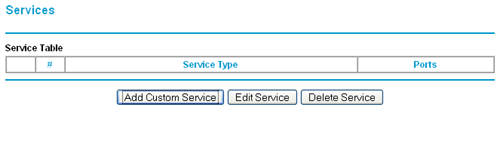
DG834 Services Picture

Step 3

Click the button to ‘Add Custom Service’ and you should be presented with a screen like:
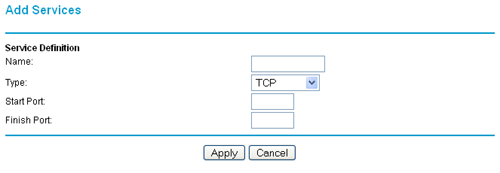
DG834 Add Services Picture

Name: It doesn’t matter what you put here, it’s just helpful to put something memorable so that you can associate the rule with your IP camera in a moment.

Type: Select ‘TCP’ in the drop-down box.

Start Port: Enter the port number of your camera, in this case 4440.

Finish Port: Enter the port number of your camera again, 4440.

Click ‘apply’ to add the service. This should return you to the previous page and show your newly added service as shown below:
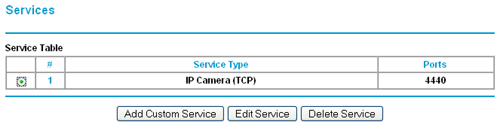
DG834 New Service

Step 4

Now we have to add a rule to the firewall using the newly created service. To do this click ‘Firewall Rules’ in the menu on the left. You will see a screen like this:
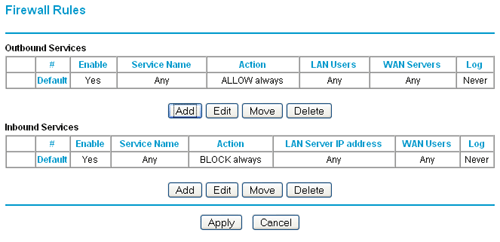
DG834 Firewall Rules

Step 5

Click the ‘add’ button under the ‘Inbound Services’ table to add an inbound service. (this means that the rule applies to any traffic coming into the router from the internet).

Step 6

You will see a screen like the image below:
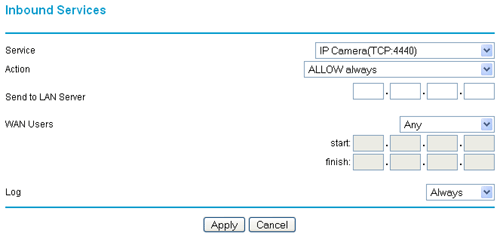
DG834 Inbound Service Picture

Service: As shown above use the drop-down menu to select the service your created in the previous step. As you can see we called ours ‘IP Camera’.

Action: Select ‘ALLOW always’.

Send to LAN Server: input the local IP address of your camera in here. In this example we would enter 192.168.0.90.

WAN Users: Select ‘Any’ to allow access to your camera from anywhere on the internet.

Log: You can choose to log actions created by this rule or not. Beware that if you choose to log these actions and your camera is publicly available you may find the log rapidly filling up.
Click the ‘Apply’ button to save your rule. You will then be presented with an screen showing your firewall rule in place as below:
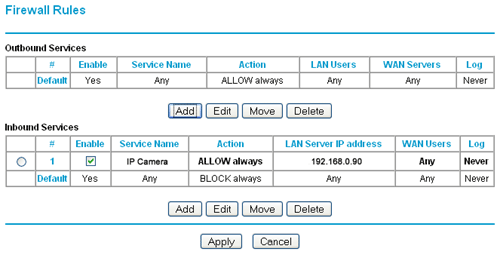
DG834 Firewall Rules Set

Step 7

That’s all there is to it. You router should now be configured so you can access your camera externally. You should try it from the internet to see if it works! Netgear routers do NOT support NAT Loopback. Put simply, this means that you cannot test your EXTERNAL or WAN address from a LOCAL computer. You must be on an external network for your external connection to work.

If you have any questions please leave your comments below or on our IP camera Forum.

| Trackback

37 Comments so far

  1. […] HOWTO: Set Up External Access to Your Camera Using a Netgear Router […]

  2. nigel robinson December 5th, 2007 2:22 pm

    help have tried the above
    i can see camera over lan but not on internet
    any suggestions

  3. Greg December 5th, 2007 3:00 pm

    Hi,

    It sounds like your router is blocking the incoming requests to view the camera. Try adding the firewall rules as described in steps 2-6 and remember to point the inbound service to the local IP address of your camera.

  4. nigel robinson December 6th, 2007 11:16 pm

    Hi have done that can access camera settings but cannot view picture any ideas

  5. Greg December 7th, 2007 1:15 pm

    If you can access your camera then it sounds like you have configured everything correctly. The reason you cannot view the actual image from the camera is probably unrelated and I would guess the browser you are using is missing the plug-in required to view the image such as Active-X, Java Applet or Flash etc.

    Find out what plug-in your model of camera uses and install this on the remote computer to view the images.

  6. nigel robinson December 7th, 2007 1:54 pm

    working now many thanks

    nig

  7. Nik January 25th, 2008 9:15 pm

    Hi Greg,

    I could really use some of your expertise. I’ve spent hours trying to view my camera over the internet, via a NetGear DG834 router.

    I’ve set up the camera’s IP as static, configured the Service and Firewall Rules to allow access and conigured the IP and port (4440). I’ve even run a port scanner to check that the port is responding.

    In short, I can view the camera on the LAN, but not the WAN - can you offer any advice?

    Thanks,

    Nik

    When I go to my camera in IE, it simply times out.

    Nik

  8. Greg January 28th, 2008 10:10 am

    Hi Nik,

    My bet is that you have configured the router correctly and it is working fine.

    NAT loopback can cause problems when trying to access your camera using your public IP address from the same local network the camera is on. Try accessing it from somewhere else on the Internet and you might find it’s fine.

    This is fairly common for routers to block this kind of traffic and it’s normal to have to use a local IP address when on the local network and a public IP address from the Internet.

  9. Mike February 14th, 2008 7:35 pm

    I have set up my IP camera as noted in the above. I can view and record on internal network but cannot view from the internet.

    HELP!

    Mike

  10. Greg February 14th, 2008 7:42 pm

    We need more information Mike, such as which external address you are using etc. Try visiting our forums at http://forum.networkwebcams.com for help…

  11. John June 1st, 2008 9:20 am

    Hi Mike,

    Can I set a random external port number and link that to the 4440 internal port?

    Thanking you,

    John

  12. Greg June 2nd, 2008 9:19 am

    I don’t think the mapping of ports is possible in a Netgear router I’m afraid, so I would stick to simply using a non-standard port in the camera and port-forward the router for external access.

  13. Jez October 27th, 2008 5:18 pm

    Hi i could do with some help regarding my camera i am using a belkin N1 Vision and cannot see my external IP in the settings tab on the camera and the router say the upnp port is 8080 should i use my ip address with 8080 at the end or do i need to set up another port to use as stated above?

    Hope you can help

    Jez

  14. Greg November 3rd, 2008 10:45 am

    Use the following site to find relevant instructions on how to port-forward for your Belkin router: http://www.portforward.com/english/routers/port_forwarding/routerindex.htm

  15. Van Pham November 9th, 2008 6:15 pm

    Hello I have just bought a wireless network camera Panasonic BL-C111 and using Negear DG834. I did follow the steps above. Everytihg went fine, but my router just does not recognise the camera at the “UPnP” section, however the router does recognise the the camera when i check the “attached device”. How can i solve this problem, because I cant forwarding port if the ADSL routed doesnt recognise the camera as UPnP device.

    Thanks

  16. Greg November 10th, 2008 10:06 am

    UPnP is simply a tool to help the setup of port-forwarding rules automatically. If it’s not working you can add the rules yourself. The guide above shows you how. If your camera is on the default port 80 then substitute the port number 4440 above for 80. Also remember that with a netgear router you will not be able to test this from the same local network due to NAT loopback. You will have to test from another computer on the Internet.

  17. danny February 18th, 2009 2:55 am

    hi i have tried every thing above and i still cant get in to my cam from an external network i use a DG834G netgear router adn a virgin media connection via a PPPoA please can you help im just about ready to throw my cam in the bin and to be honest its not the cam its just the router not letting people through
    thanks

  18. Kevin February 18th, 2009 9:39 am

    Hi Danny. Well, first thing is that it is possible to access your router so we know that external access is possible.

    Next you need to double check what port your camera is operating on and for ward THAT port through the router. The DG834 does not port map so you can’t, for instance, forward port 8080 to port 80.

    Your router is on port 80 so you need to choose a different port number. additioanlly, be sure that the camera is on a static local IP address and you confirm you can access the camera on the local address.

    I presume you’ve gone through the setup in this post? If so, you’ve either not completed it fully or there is a problem with your router. You may find you have to restart the router for the settings to take as well.

    I wouldn’t throw the camera away when the port forwarding issue is clearly with the router ;-)

    One other thing… I know that virgin do not block ports, so the issue has to be with your routing.

  19. SHIRISH July 4th, 2009 8:26 am

    HOW i Access internal internet setup using a netgear 54 mbps wireless router WGR614 v6

    kindly send me a setup for that or user manuak,

  20. Greg July 7th, 2009 10:42 am

    You can download the manual here for that model of router: http://kb.netgear.com/app/products/model/a_id/2588

  21. Filippo July 9th, 2009 5:18 pm

    All-
    i have a Netgear MR814v3. I bought a IP camera which i was able to connect via cable, but i cannot via Wireless.

    i am wondering if the model of my netgear is “out of date” for this settings since i could not find the “service” link as per STEP 2

    Thanks for your help…
    Filippo

  22. Greg July 13th, 2009 11:22 am

    @Filippo

    Yeah, sometimes you will get the occasional difference between different router models from the same manufacturer. Try this:

    http://www.portforward.com/english/routers/port_forwarding/Netgear/MR814/HTTP.htm

  23. Sheila July 30th, 2009 7:53 pm

    hello

    what determines how many computers can access my camera from the internet at the same time?

    thank you.

  24. Greg August 3rd, 2009 9:53 am

    @Sheila:

    All camera’s will have a theoretical limit to the number of simultaneous connections it can have (between 20-50 depending on model.

    What you’ll find though is your broadband upload speed is the bottleneck when accessing across the Internet. The faster an upload speed you can get from your ISP the more people will be able to access your camera over the Internet.

  25. Nigel Shaw September 8th, 2009 9:40 am

    Greg, I now have five panasonic camera’s on our network but can only access one port from the internet. Do I need to set up a service for each camera on the DG834g or can I use the range ports 50001 to 50006 using the settings above? They can all be viewed from the lan.
    Thanks Nigel

  26. Greg September 9th, 2009 11:22 am

    @Nigel Shaw:

    I would set up a service for each camera as you would need to point the port number (50001 to 50006) to the specific local IP address of each camera.

    You could set up one service covering a range of ports if it allows you to assign that service more than once in the Firewall Rules though I guess. I’ve never tested that.

  27. terry October 25th, 2009 7:11 pm

    Just a thanks to who posted the above article i”ve spent 4 days trying to get y-can to work on a outside network with out success.Having followed the above instructions i now can
    Cheers

  28. Greg October 26th, 2009 1:29 pm

    @terry:

    No problem. That’s why we write them!

  29. amar singh bisht November 9th, 2009 1:42 pm

    i installed ip 1100a with netgear router w gr614 v9 but
    i want to acess my cam in outside pls how to configred my cam this router.

  30. Greg November 10th, 2009 10:43 am

    @armr:

    The WGR614 is not a lot different to the instructions above. Follow the above and you should be fine.

  31. Ujang December 4th, 2009 2:19 am

    hi greg,
    i’ve configure my router and it seems that i don’t have any problem accessing my CCTV using local LAN but my problem is that i can’t access it from the outside my LAN (internet). i’m using D-Link D-634M router and a firewall (hardware). My modem is connected to my firewall before i connected it to my router.

  32. Greg December 4th, 2009 6:05 pm

    @Ujang:

    Have you got the firewall enabled in your D-Link router and have also connected an external firewall to your router? (effectively running 2 firewalls?)

    This makes port-forwarding quite complex. You have to forward one firewall to the other before you forward the camera through.

    I’d suggest running just the one firewall.

  33. John December 24th, 2009 12:30 am

    I’m using a Netgear DG834PN router and have 4 panasonic IP cameras on a LAN that are viewed fine. I’ve tried setting up Panasonic’s viewnetcam service but am unable to get access remotely. I picked up on another site that this might be because of the need to configure ports, hence to this site. The maintenance page of the camera shows the port as 80, but I can’t see an option to change this. I have tried using this to set a service on the router, but the response is that this is already being used (by the router?). Is there something else I should be doing to resolve? Finally, to actually access the camera remotely, is this just a case of entering the router’s global address? With 4 separate cameras, I’m not sure how you’d then access four separate services to go from router to camera. Sorry if this is an obvious question!
    Cheers
    John

  34. Greg December 29th, 2009 12:39 pm

    @John:

    Yes, to access your cameras from the Internet you would need to use your global (or public) IP address. Once you set up the viewnetcam account (which I advise you do on only 1 camera and disable on the rest) this will become your global IP address which you use to access your cameras from the Internet.

    You are right to wonder how you access each camera individually if you only have 1 global address. To do this you need to change the port number in each of your cameras and then you can specify the port for which camera you want to view.

    So here’s a short step-by-step:

    1) Change the port number in each camera. I suggest using port 4440 for camera 1, 4441 for camera 2, 4442 for camera 3 and 4443 for camera 4. To change the port number enter the setup pages of each camera and on the first page (network settings) click on the link that reads “static”. This will display that camera’s local IP address and the top entry is the port number (which will be on port 80 by default).

    2) Then set up a service for each port in your router. You may have to create a custom service for each. (use TCP as the protocol). When setting up the firewall rule select your custom service and point it to the local IP address of your camera. So, for example, if your first camera can be accessed using 192.168.0.253 and is on port 4440 then you must select the 4440 service and when it asks “send to LAN server” that is the 192.168.0.253 local IP address of the camera with the corresponding 4440 port number.

    3) Finally remember that when your cameras are no longer on port 80 you have to expicitly specify the port number. So on the local network an example would be ‘http://192.168.0.253:4440′ and from the Internet it would be your Viewnetcam address followed by ‘:4440′.

    Let us know how you get on.

  35. John January 1st, 2010 11:47 pm

    Greg - many thanks, worked first time! I have a separate problem in that the camera address + port is also now different for the Netstreams system, but I can fix this separately. Thanks again, really helpful.
    Cheers
    John

  36. Malaranpan January 7th, 2010 4:22 pm

    Thanking you from my bottom of my heart.

  37. Paul February 2nd, 2010 8:47 pm

    Hi I have put all the settings in and can access the cameras over the internet but cannot view any pictures, java is installed.

    Many thanks
    Paul

Leave a reply